Amp Guard – Troubleshooting and Installation tips

Modified on Tue, 17 Mar at 3:06 PM

General tips

  • Grey terminal is only used for measuring production (e.g. solar panels)

  • Antenna: Screw on carefully. Never use it as a lever

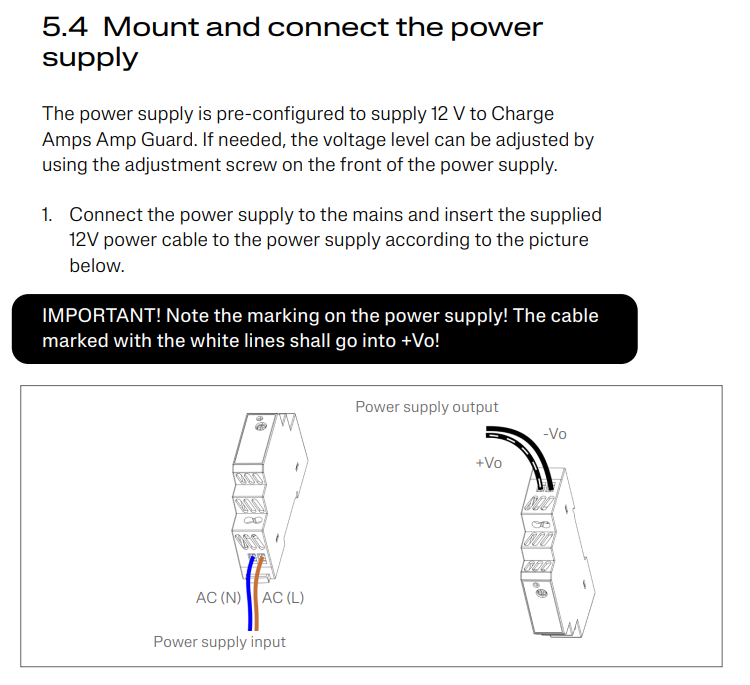
  • Power supply (12V)
    NOTE – polarity is critical

    • + (marked cable) → left
    • – (black cable) → right

  • Adapter and current measurement terminal can be connected to the same fuse

  • Startup time: up to 5 minutes before LED changes from blue to green


Installation – Power supply

230V in (AC):

  • N → left (AC(N))

  • L → right (AC(L))

12V out (DC):

  • Marked cable → +V (left)

  • Black cable → –V (right)

Important:

  • Follow the labeling on the power supply, not standard assumptions


Troubleshooting (symptom-based)


1. Device does not start

Likely cause: Incorrect 12V polarity

Action:

  • Verify that:

    • Power supply has 230V input

    • Marked cable is connected to + (left)

    • Black cable is connected to – (right)

  • Confirm according to labeling on the power supply


2. Device is blinking (not solid light)

Blinking light = device is not correctly initialized

Likely cause:

  • Incorrect wiring

  • Module not properly mounted

Action:

  • Check all wiring

  • Press the module firmly into place:

    • Must sit flush

    • No visible gaps

    • Must feel mechanically stable


3. Phase indicator is red

Cause:
Two possible causes:

  • Incorrect phase order

  • Low load (< 2A on one or more phases)

Important:

  • Load below approx. 2A can result in a red indicator without any fault

  • This is normal behavior at low load

Action:

  • Check current load:

    • If < 2A → no action required

  • If normal load is present and indicator is still red:

    • Check phase order


4. Cannot connect to device WiFi

Scenario A – SSID not visible

Likely cause:

  • Device has not started

  • Incorrect 12V connection

Action:

  • Verify the device is powered (LED on)

  • Check 12V polarity (see point 1)


Scenario B – SSID visible but cannot connect

Likely cause:

  • Common issue: poor contact between sensor and module

Action:

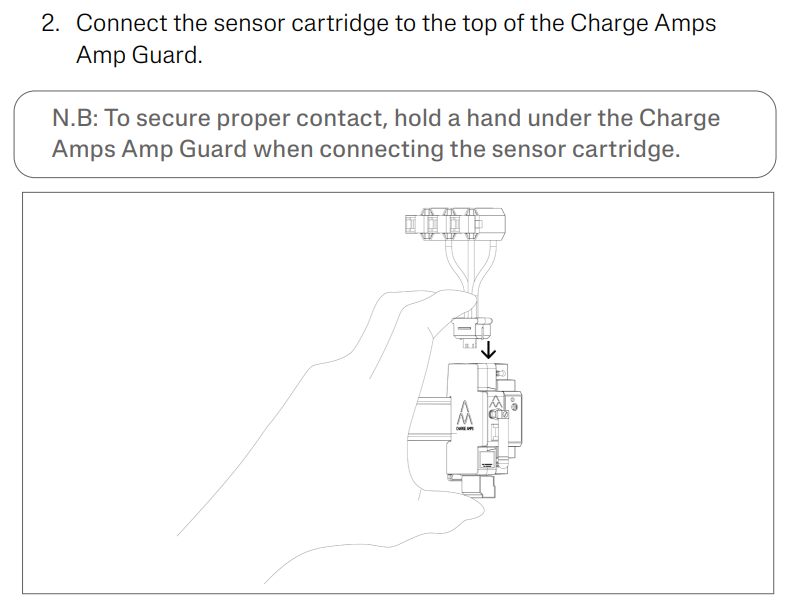
  • Reinsert the current transformer connector

  • Apply light pressure on the module:

    • Especially near the power terminal

  • Ensure the connector is fully seated

If the problem persists:

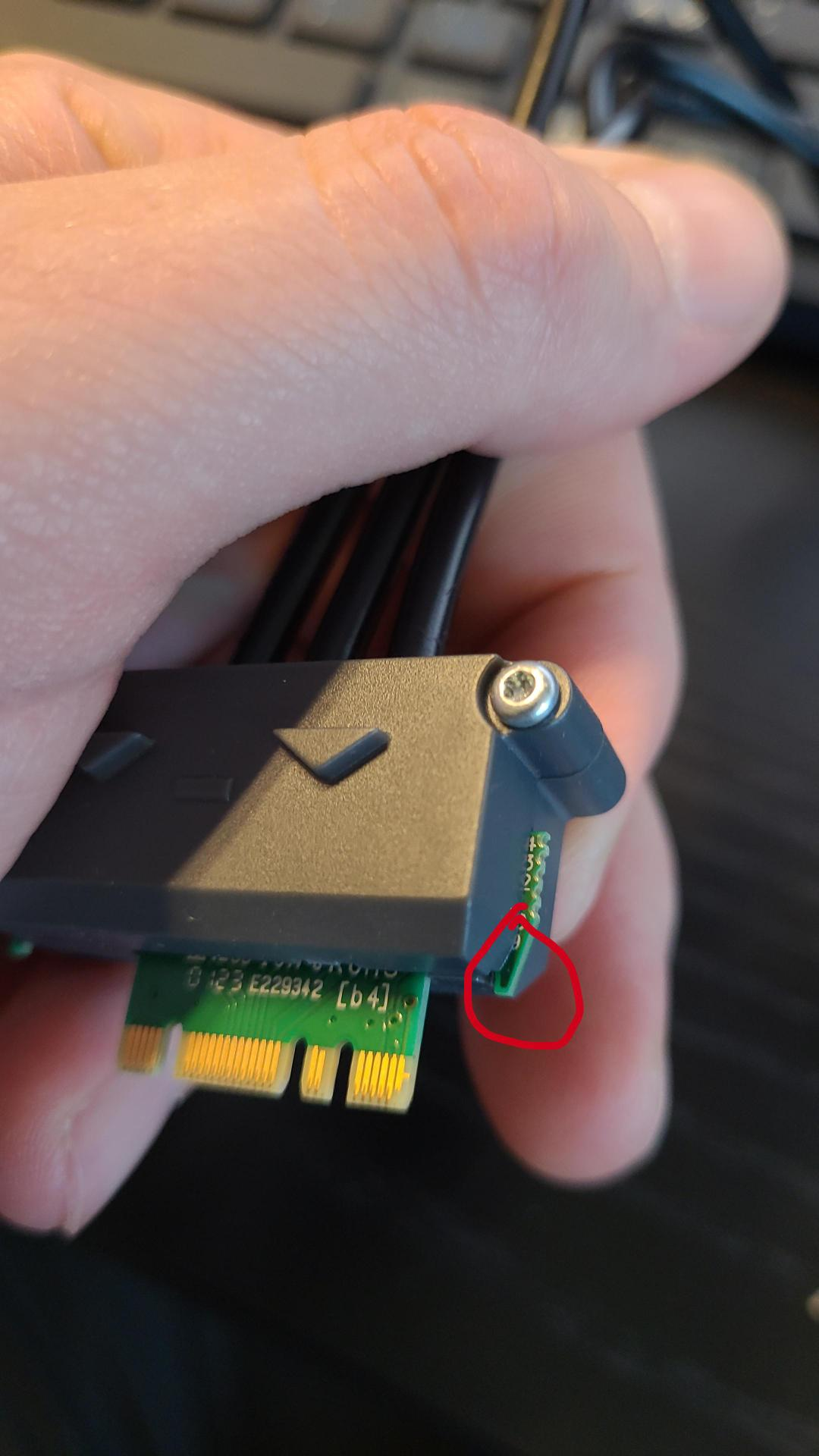
  • May be caused by poor contact in the PCB connection

Action (use caution):

  • Identify the small green plastic parts near the connector (see image below)

  • Carefully trim/remove these to reduce mechanical stress and improve contact

  • Avoid damaging PCB or connector pins

Only perform this step if the issue persists after the above actions


Additional actions

  • Forget the network in the phone’s WiFi settings and reconnect

  • Test with another mobile device (to rule out client-side issues)


Sensor installation

  • The sensor cartridge must be mounted at the top of the unit

  • Ensure it is fully inserted and properly seated


Bottom line

  • Correct 12V polarity resolves most startup issues

  • WiFi issues are usually caused by physical connection, not software

  • If all steps above are verified → replace unit / proceed with RMA according to process

Was this article helpful?

That’s Great!

Thank you for your feedback

Sorry! We couldn't be helpful

Thank you for your feedback

Let us know how can we improve this article!

Select at least one of the reasons
CAPTCHA verification is required.

Feedback sent

We appreciate your effort and will try to fix the article