Note: Perific/Enegic Monitor is not a Charge Amps product. This page is a general troubleshooting guide. For further support or case handling, contact Perific Support.
Troubleshooting
If something seems off with your device, follow the steps below to quickly identify the issue.
Device is offline
Start by checking the device status.
Check status
Press and hold the bottom button for 2 seconds
Release the button
The device will start blinking in a color
Status indication
Blue blinking → Configuration mode
Yellow blinking → No connection to router (typically wrong WiFi/password)
Green blinking → Connected to router, but no internet access
Actions
Blue or yellow blinking
Network issue.
Action:
Reconfigure the network (see guide below)
If the device is not visible in the app:
Go to:
Settings → New device → Configure new deviceFollow the steps in the app
Green blinking
The device reaches the router but has no internet access.
Action: Check router / network
Make sure the following is allowed:
UDP →
phase.device.enegic.com:65110HTTP/TCP →
firmware.enegic.com:89NTP (UDP) → port 4242
Timezone (UDP) →
timezoned.rop.nl:2342
Important:
Only 2.4 GHz WiFi is supported
Ensure 2.4 GHz is enabled
When working:
The device shows solid green = online
Device shows no light
Step 1: Restart
Power off the device
Wait 30 seconds
Power on again
Expected behavior:
Blinking → solid green
Step 2: Check power
If the device still does not start:
USB adapter: try a different adapter
DIN adapter: ensure it is set to 5 V
Quick troubleshooting
Blue/yellow → reconfigure network
Green → check router/network
No LED → check power
Reconfigure network
Changing network (e.g. new router or WiFi issues) is done directly in the app.
When to do this
You changed router or WiFi
The device lost connection
The network is unstable
How to do it
1. Open the app

Log in as usual. If you don’t have login details, contact Perific Support.
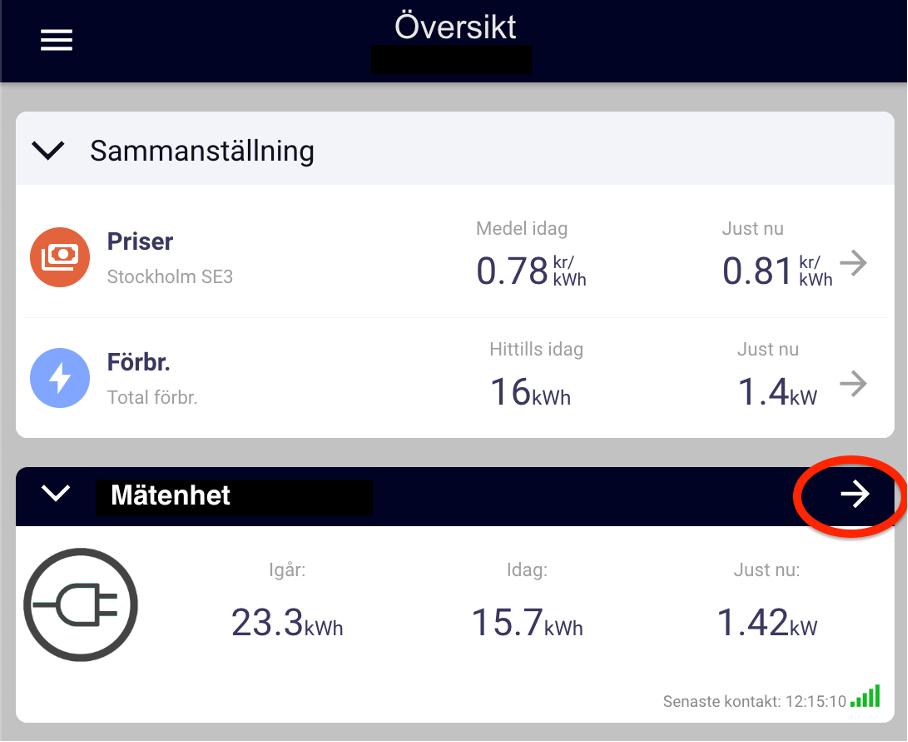
2. Go to Meter Device
Navigate to Overview
Scroll to Meter Device
Tap the arrow in the top right corner
3. Start reconfiguration
Go to Settings
Select Reconfigure network connection
Tap Reconfigure
4. Initiate process
Tap Start reconfiguration
5. Set device to configuration mode
Press and hold the bottom button
Wait until it starts blinking blue (~10–12 seconds)
6. Follow the steps in the app
6.1 Connect to the device
Connect your phone to WiFi:
EnegicConfig_XXXXIf prompted “No internet connection” → choose Connect anyway
If needed, temporarily disable mobile data
6.2 Select network
Choose your WiFi from the list
Tap Continue
6.3 Enter password
Enter WiFi password
Tap Continue
The device will now connect to the network
6.4 Finish
Tap Finish
Note: Perific/Enegic Monitor is not a Charge Amps product. This page is a general troubleshooting guide. For further support or case handling, contact Perific Support.
Was this article helpful?
That’s Great!
Thank you for your feedback
Sorry! We couldn't be helpful
Thank you for your feedback
Feedback sent
We appreciate your effort and will try to fix the article