This article explains how load balancing works in Charge Amps systems and how to troubleshoot common issues.
How load balancing works
A common misconception is that the energy meter itself performs the load balancing in the Charge Amps system. This is not the case.
In the Charge Amps system, load balancing is handled in the cloud. Energy meters such as Amp Guard or EnegiC send measurement data to our cloud where the load balancing calculation is performed. The cloud then sends information to the charger about how much current is available for charging.
This means that:
both the charger and the energy meter must be online
they must be connected to the same site in the Partner Portal
This connection is most easily configured using the Installation Guide available under Control Panel in the Partner Portal.
Load balancing can operate in two different modes:
- Static load balancing
No energy meter is used. The system only distributes available current between chargers.
- Dynamic load balancing
An energy meter is used and takes the site’s total consumption into account.
Quick troubleshooting
If load balancing is not working, first check the following:
• The charger is online in the portal
• The energy meter is online in the portal
• Load balancing is enabled
• Max supply current is correctly configured
• The phases are correctly connected
• The current transformers are installed correctly
If everything above is correct but the issue persists, continue with the troubleshooting steps below.
Common issues
Incorrect configuration
Verify that all settings are correctly configured.
- Supply max current
Supply max current should match the physical incoming fuse.
- Max current per phase (AG online)
This is the maximum current the charger is allowed to use per phase.
The value should correspond to the fuse protecting the charger or charger group.
- Min current per charger
This is the minimum current the charger can deliver.
Most vehicles require at least 6 A to start charging.
Some vehicle models may require more.
If this value is set too high, charging may stop unnecessarily.
Example:
If the minimum current is set to 8 A but the vehicle can charge at 6 A, charging may stop even though it could have continued.
Overload
If charging stops or becomes limited, the first step is to check the site load.
This can be done by looking at the energy meter statistics.
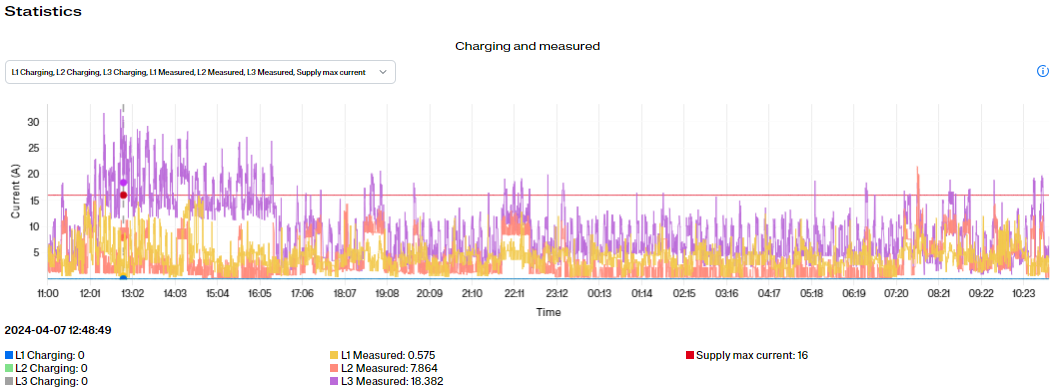
If the other consumption in the site exceeds the max supply current even when no charging is occurring, it may indicate:
• Max supply current is configured incorrectly
• The electrical installation is undersized
In such cases there is very little capacity left for charging.
Rotated phases
Verify that charging occurs on the same phase that the energy meter measures.
If charging occurs on one phase but the measured consumption appears on another phase, the phases are rotated.
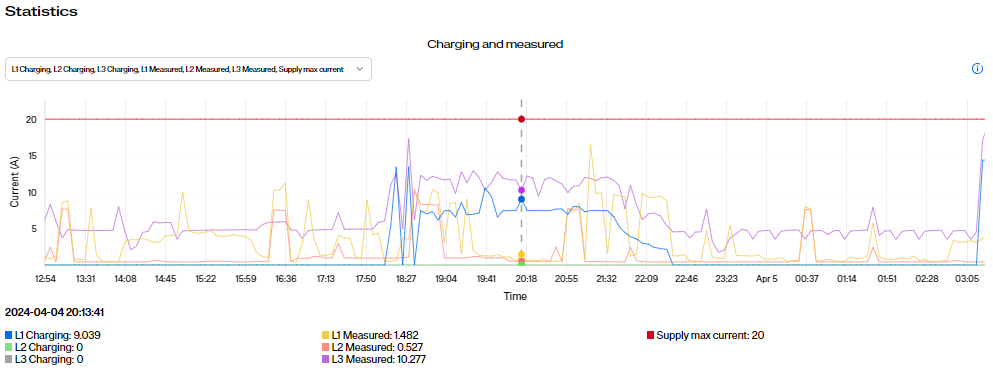
Example:
Charging shows 9 A on L1, but the total consumption on L1 is nearly zero.
Instead, the same consumption appears on L2.
This means that L1 and L2 are swapped.
As an installer, always follow the sine curves, not the cable color.
Reversed current transformer
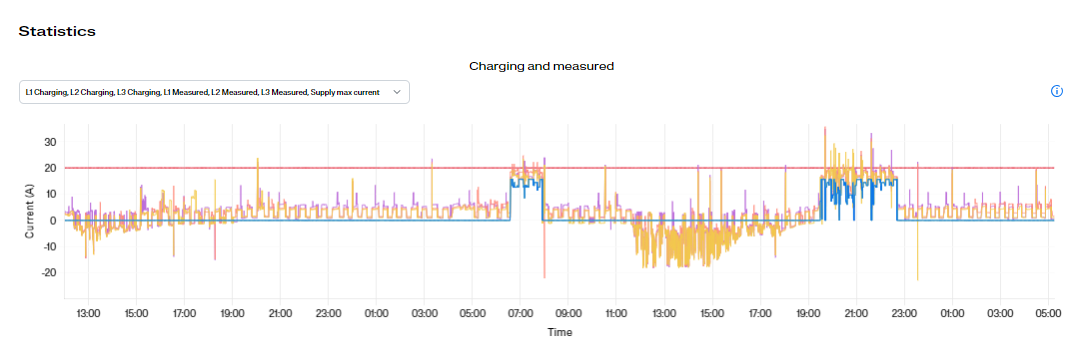
If a current transformer is installed backwards, consumption will appear as production.
The graph will go downwards instead of upwards.
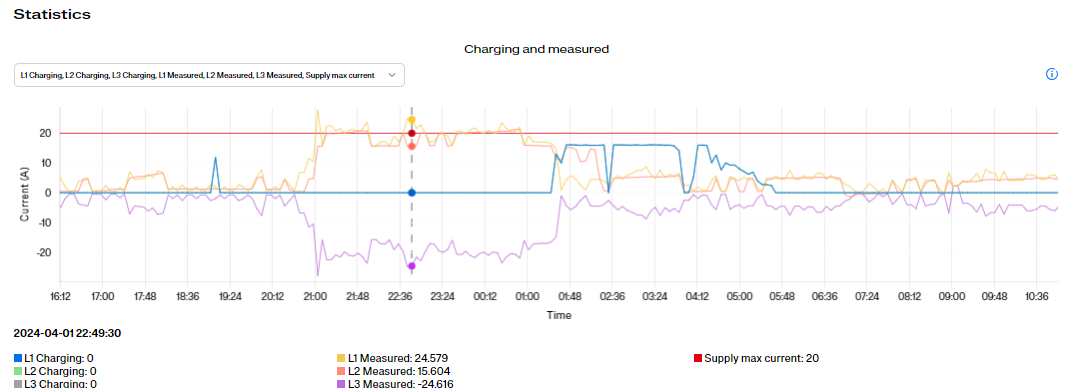
This means the charger believes more current is available than actually is.
The result may be that the charger runs at full power and the fuse trips.
Verify that the current transformer is installed in the correct direction.
Energy meter has lost connection
Verify that the energy meter is online.
If the status is Offline, the meter has lost its connection.
If the meter has been offline for a period of time, this will often appear in the graph as flat lines.
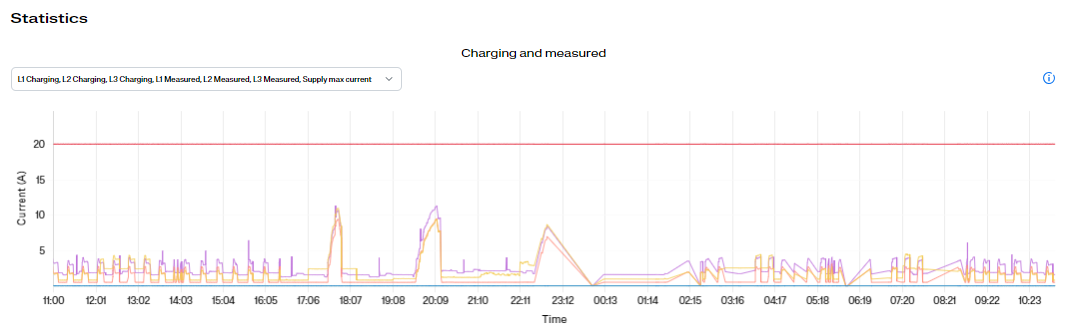
This pattern can also occur if load balancing has been disabled.
Solar installation
If solar panels are installed at the site, the system must be configured correctly.
For Amp Guard, L1, L2 and L3 must be connected to the measurement terminal block.
Once this is done, the setting:
“System contains power generators (e.g. solar panels)”
must be enabled.
If this setting is not enabled, solar production will be interpreted as consumption.
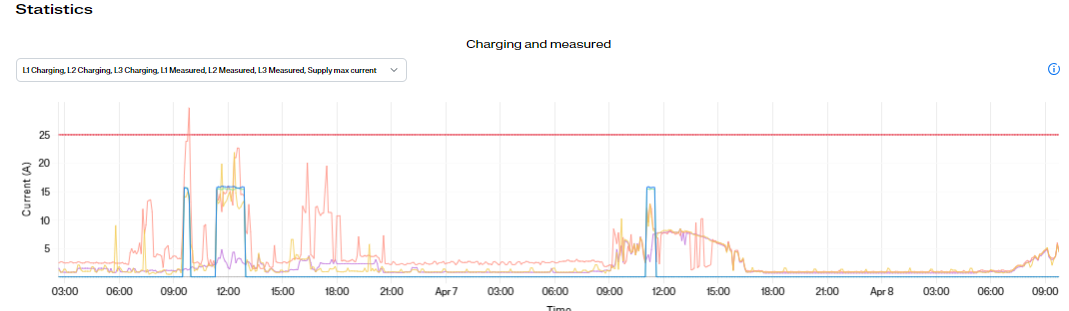
With correct configuration, solar production should appear as negative consumption.
Settings
Below is a short explanation of the most important load balancing settings.
Earthing system
Specifies the type of electrical grid used.
Example:
• TN system (common in Sweden)
• IT system (common in Norway)
Phases
Defines:
• how many phases should be load balanced
• which order should be prioritized
Example:
If only one phase is used:
1
If three phases are used:
1,2,3
If L3 has the lowest load, you can instead use:
3,2,1
Min current per charger
The minimum current the charger is allowed to deliver.
This should normally be 6 A.
Supply max current
The maximum current that can be drawn from the site.
This normally corresponds to the main fuse.
Max current per phase (AG offline)
The maximum charging current when the energy meter has lost connection.
It is recommended to keep this value low, often the same as minimum current per charger.
Max current per phase (AG online)
The maximum charging current when load balancing is operating normally.
This value should correspond to the charger fuse.
Socket enabled
Enables the Schuko outlet on Halo.
Include chargers in site power consumption
Defines whether charger consumption should be included in the measurement.
This depends on whether the charger is installed before or after the energy meter.
System contains power generators (e.g. solar panels)
Enable this if the installation includes solar panels or other power generation.
This allows the system to understand the direction of current flow.
Need more help?
Please contact in the following order:
Installer → Distributor → Charge Amps Support
Was this article helpful?
That’s Great!
Thank you for your feedback
Sorry! We couldn't be helpful
Thank you for your feedback
Feedback sent
We appreciate your effort and will try to fix the article